Colordex — User Guide
Colordex is an Adobe® Illustrator® extension that audits every color in your document, merges near-duplicates, flags and fixes press problems, and shares palettes with their names and roles intact. Everything runs on your computer, non-destructively, and every action is undoable.
Install & open
- Install Colordex from the Adobe Creative Cloud Marketplace (Adobe Exchange). After purchase it installs into Illustrator automatically — there is no license code to enter.
- Open or restart Adobe Illustrator.
- Open the panel: Window → Extensions → Colordex.
- Open a document, then click Refresh (in the 🎨 Colors view) to scan it.
Quick start
The whole tool is four verbs. From the 🎨 Colors view:
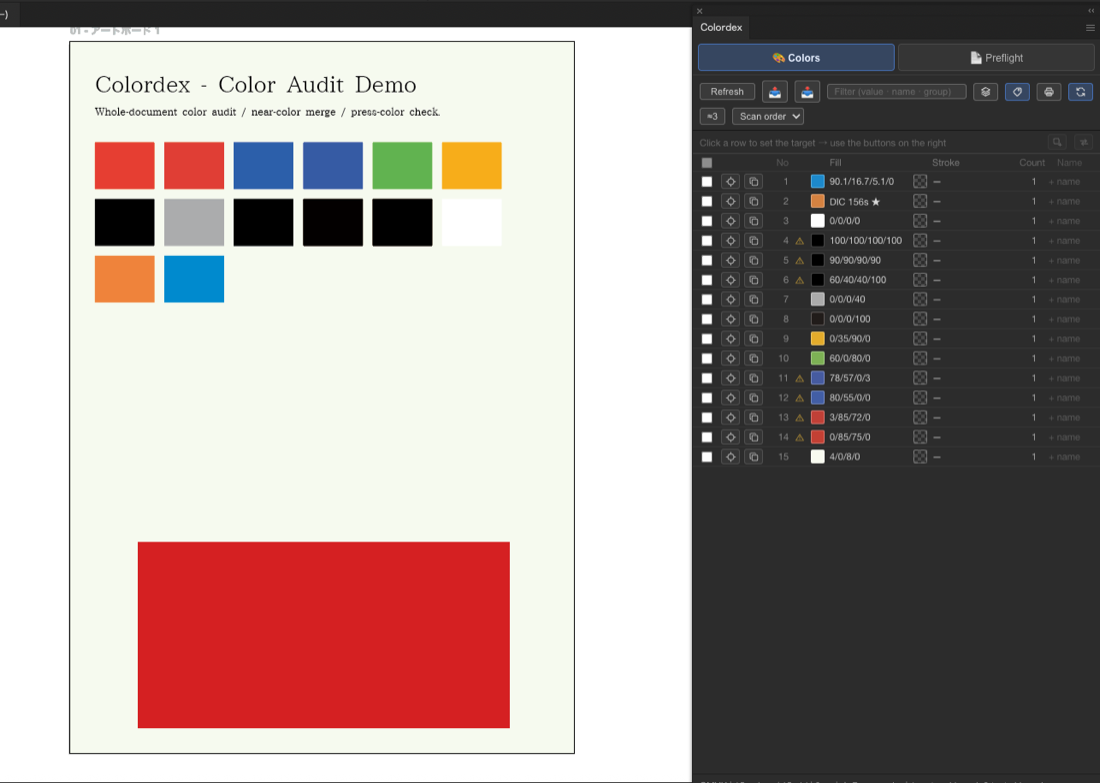
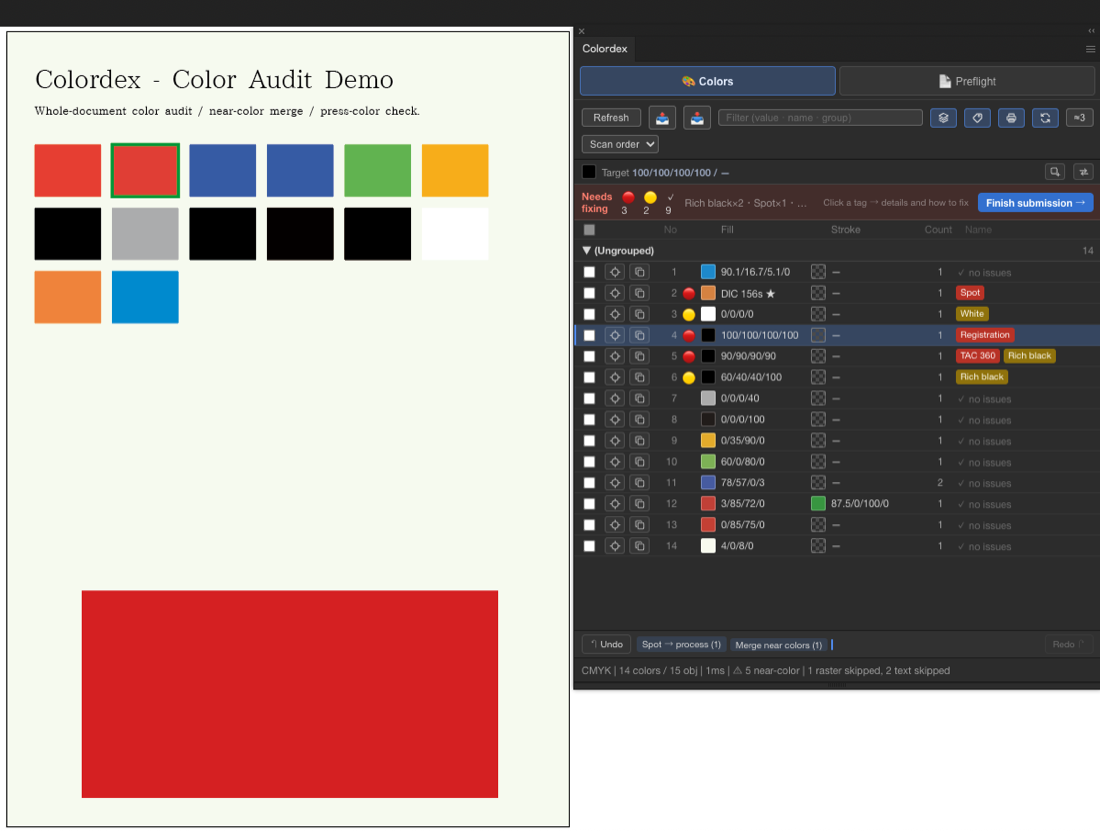
- Audit — Click Refresh. Every fill, stroke and compound-path color appears with an object count. Spot colors are marked ★, stray RGB is flagged, and near-duplicate colors get a ⚠.
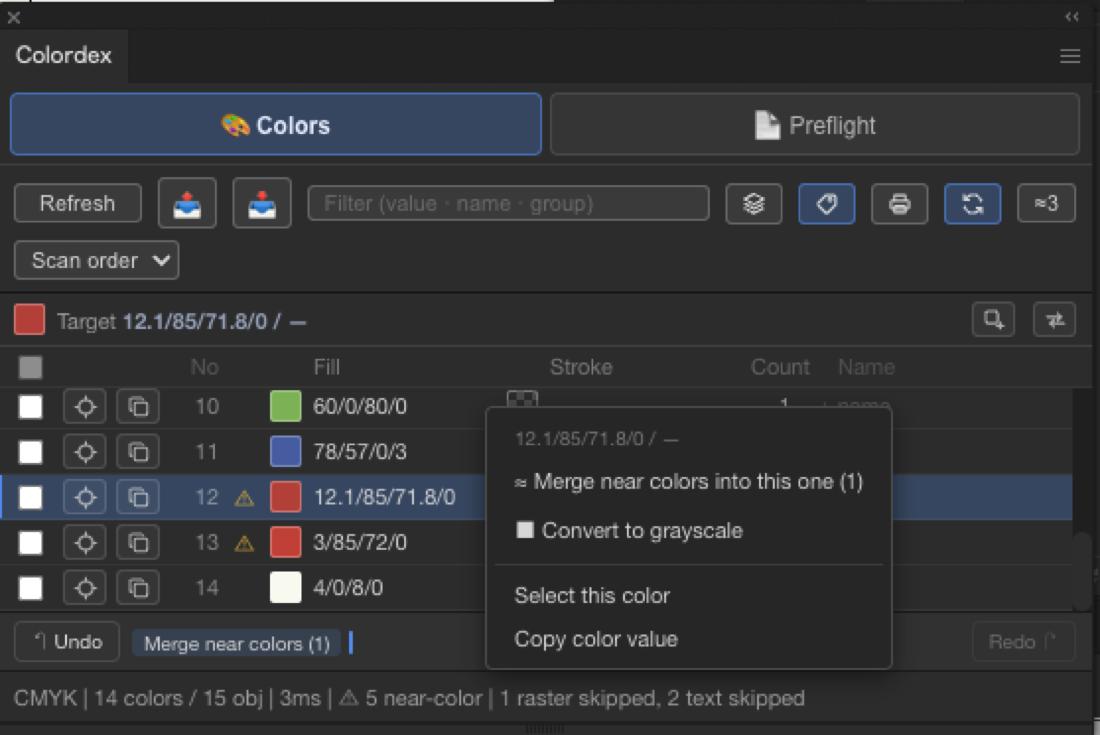
- Merge — Right-click a color → ≈ Merge near colors into this one → Merge. Near-duplicates collapse into one.
- Fix — Turn on Print check, then click a 🔴/🟡 tag to see why it's risky and apply a one-click fix.
- Share — Click 📤 to export the palette as a
.cpapal.json; a teammate clicks 📥 to import it with names and roles intact.
The two views
The button at the top switches between two views:
| Button | What it does |
|---|---|
| 🎨 Colors | The main view — audit, merge, fix and share colors, and run press-color checks. |
| 📄 Preflight | A first-pass document screen — un-outlined fonts, bleed and image resolution. |
Colors view
Reading the list
After Refresh, the status line shows the working color space, the number of colors, the object count and the scan time (e.g. CMYK | 15 colors / 240 obj | 32ms). Each row is one color:
| Mark | Meaning |
|---|---|
| ★ | Spot color (prints with its own dedicated ink / plate). |
| ⚠ | This color has a near-duplicate elsewhere in the list (by ΔE2000). |
| Fill / Stroke | Whether the color is used as a fill or a stroke. |
| Count | How many objects use this color. Click Sel to select them on the canvas. |
Toolbar
| Control | What it does |
|---|---|
| Filter | Filter rows by color value, name, group or memo. |
| Group view | Group the list by the groups you've assigned. |
| Print check | Turn on the press-color checks (spot, registration, rich black, TAC, RGB). See below. |
| Sync selection | Highlight the rows for colors you've selected on the canvas (on by default; auto-off for very large selections). |
| Near-color sensitivity | How close two colors must be to count as "near (⚠)". ΔE2000 is a perceptual color-difference metric; changing the slider updates the ⚠ marks instantly. |
| Sort | Scan order, by count, by hue, or by name. |
Audit — name colors and save roles into the file
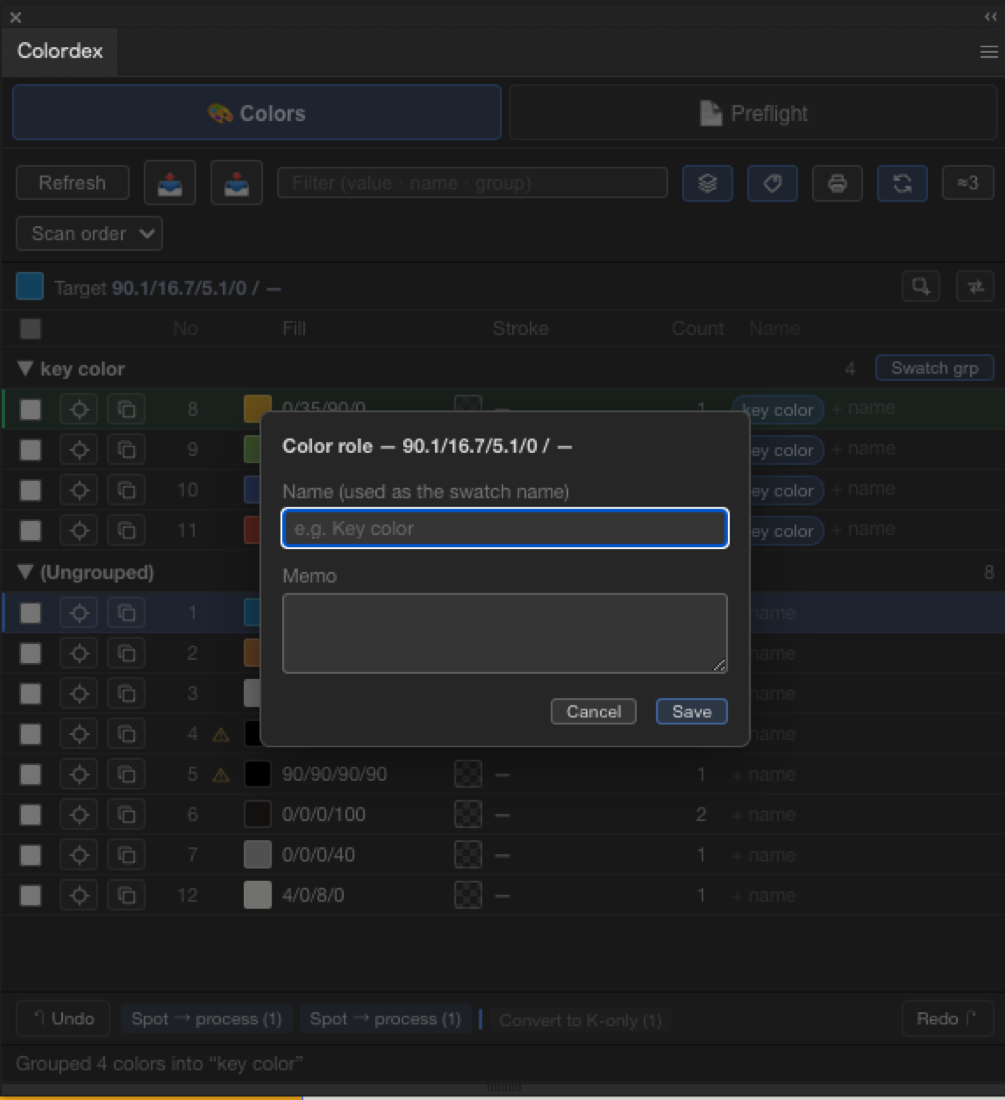
Click a row's name area (or + name) to open the role editor. A name, memo and group can be attached to each color. These save into the .ai file itself — they travel with the document. Select colors and click Group to group them; a group can be exported as a native Illustrator swatch group with the Swatch grp button.
Merge — collapse near-duplicates
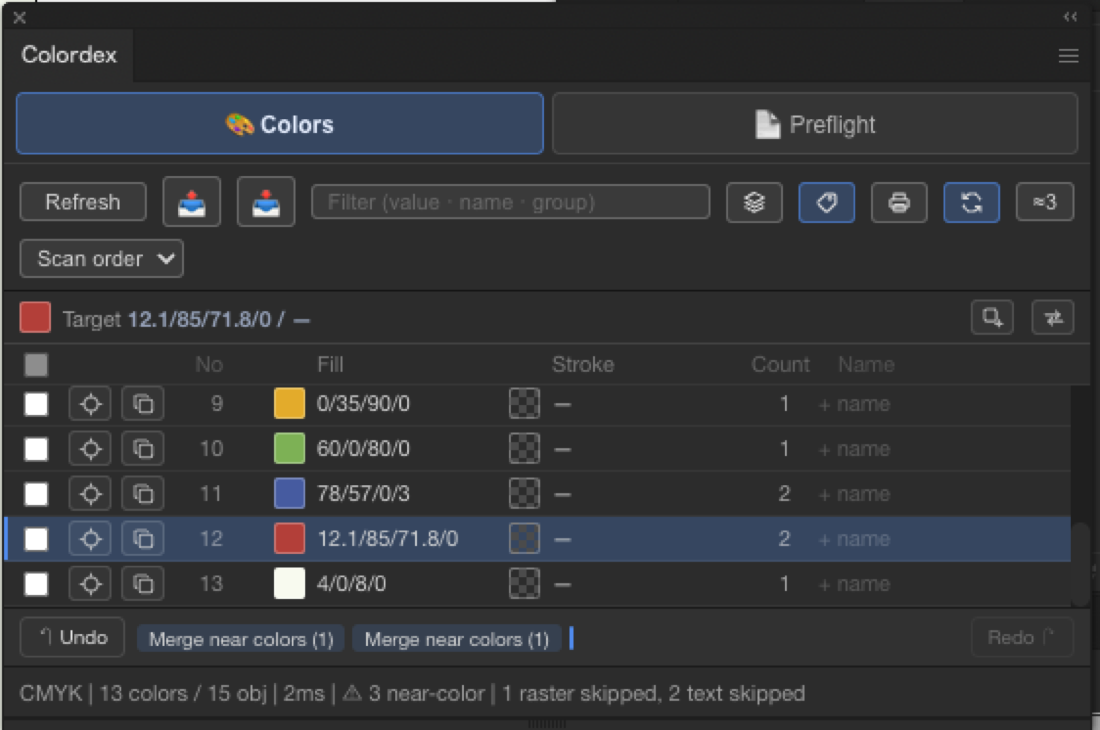
Near-duplicate colors are detected with ΔE2000, the print industry's color-difference metric, and marked ⚠. Right-click the color you want to keep → ≈ Merge near colors into this one → confirm with Merge. The other colors are replaced by it across the document, and any name carries over to the merged color. Use this to clean up bloated palettes and redundant plates.
Select & replace by color
On any row, Sel selects every object using that color (compound paths included) and zooms to fit. To replace one color with another, set a Target and use Rep, then click → here on the destination row. Names carry over to the target.
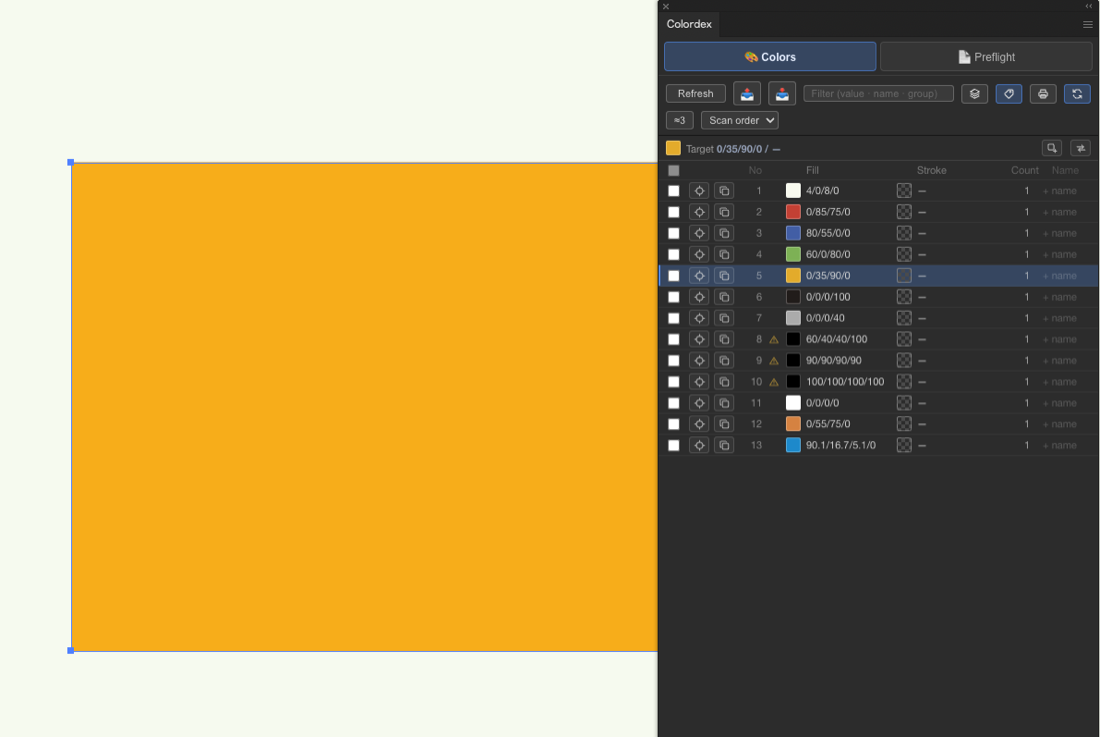
Undo / redo
Every Colordex action is undoable. Use the panel's ↶ Undo / Redo ↷ buttons, or Illustrator's own Cmd/Ctrl+Z — conversions can still be undone afterward.
Press-color checks
Turn on Print check. Colordex flags the colors that can cause problems on press, each with a plain-language reason and (where possible) a one-click fix. Click a 🔴/🟡 tag to expand it.
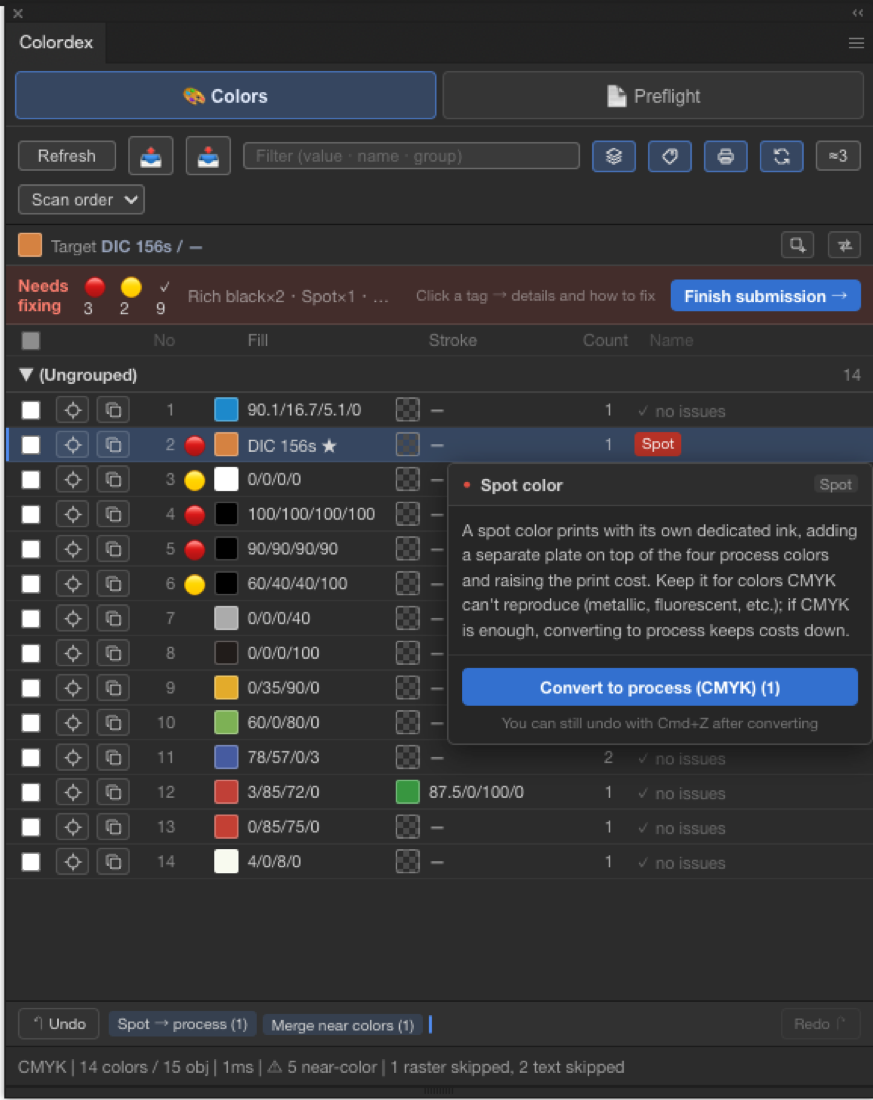
A spot color prints with its own dedicated ink, adding a separate plate on top of the four process colors and raising the print cost. Keep it for colors CMYK can't reproduce (metallic, fluorescent, etc.).
Fix: Convert to process (CMYK) when CMYK is enough.
A special color meant only for crop and registration marks. Used on text or fills it overlaps all four plates, dries slowly and causes set-off and misregistration.
Fix: Convert to K-only (black) if you just want black.
The sum of C+M+Y+K is too high (commonly around 300% is the limit). The ink doesn't dry fully, causing set-off, scuffing and pages sticking together.
Fix: Convert to K-only (note: hue is lost and replaced by a black tint; to keep the color while reducing ink, adjust manually).
A deep black made by mixing C/M/Y into K. Great depth on large solids, but on small text or thin lines misregistration causes colored fringing.
Fix: Convert to K-only (black) for body text and fine lines.
A screen color. Print uses CMYK inks, so it's converted at submission and vivid blues, greens and oranges can go dull. Convert before submitting so you can check the result yourself.
Fix: File → Document Color Mode → CMYK converts the whole file at once.
Colordex also recognises white (0% ink — usually nothing to fix) and translucent objects (opacity below 100% — fine if intentional). Total ink (TAC) is an estimate based on object fill values; transparency overlaps, spot-to-process conversion and ink inside images are not evaluated. The definitive total is your PDF/X export reviewed in Acrobat's Output Preview.
Preflight view
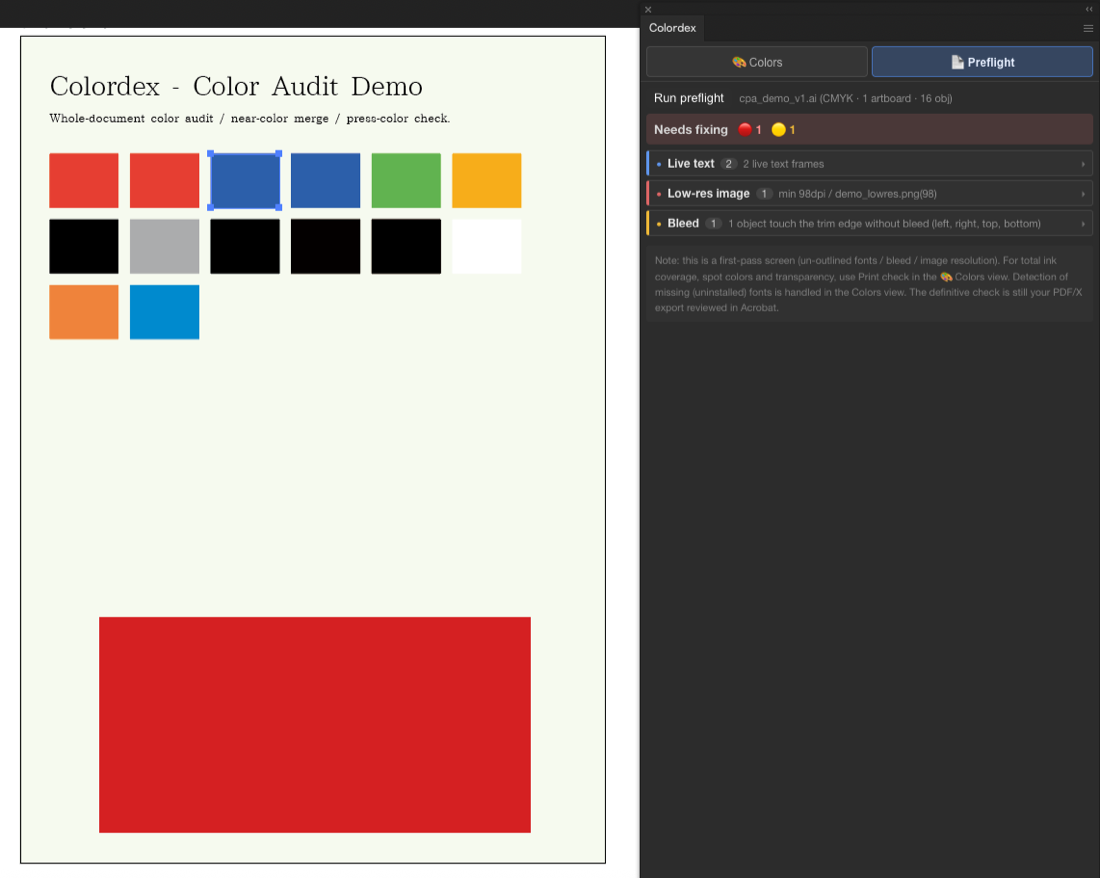
Switch to 📄 Preflight and click Run preflight. This is a first-pass screen for three things that aren't about color:
- Fonts — un-outlined / used fonts.
- Bleed — whether the document has bleed set up.
- Image resolution — low-resolution images. Click Select on a flagged image to jump to it on the canvas (for linked images, the row in the Links panel is highlighted too; embedded images are selected on the canvas only).
Finish & export
Colordex doesn't build your PDF — when the colors pass, it hands you off to Illustrator's own export, which is the reliable path. Click Finish submission → for the checklist. In short:
- File → Save a Copy (your working file stays untouched).
- Format: Adobe PDF.
- Preset: the one your printer provides (e.g. a PDF/X-1a preset).
- Save → upload that PDF.
Fonts are embedded automatically, so outlining is not needed; crop marks, bleed and transparency flattening are handled by the preset.
Share a palette
A native .ase swatch file carries only color values. Colordex carries the meaning across files — names, roles, and even spot-color origins — as a .cpapal.json.
- Export — click 📤. All colors plus their roles (name / memo / group) are saved to a
.cpapal.json. - Import — a collaborator clicks 📥 and picks the file. The colors are added as swatches and the roles are imported. Your existing roles are never overwritten. A reference swatch sheet is laid out, and a converted spot color is annotated (e.g.
was spot DIC 156s (converted to CMYK)).
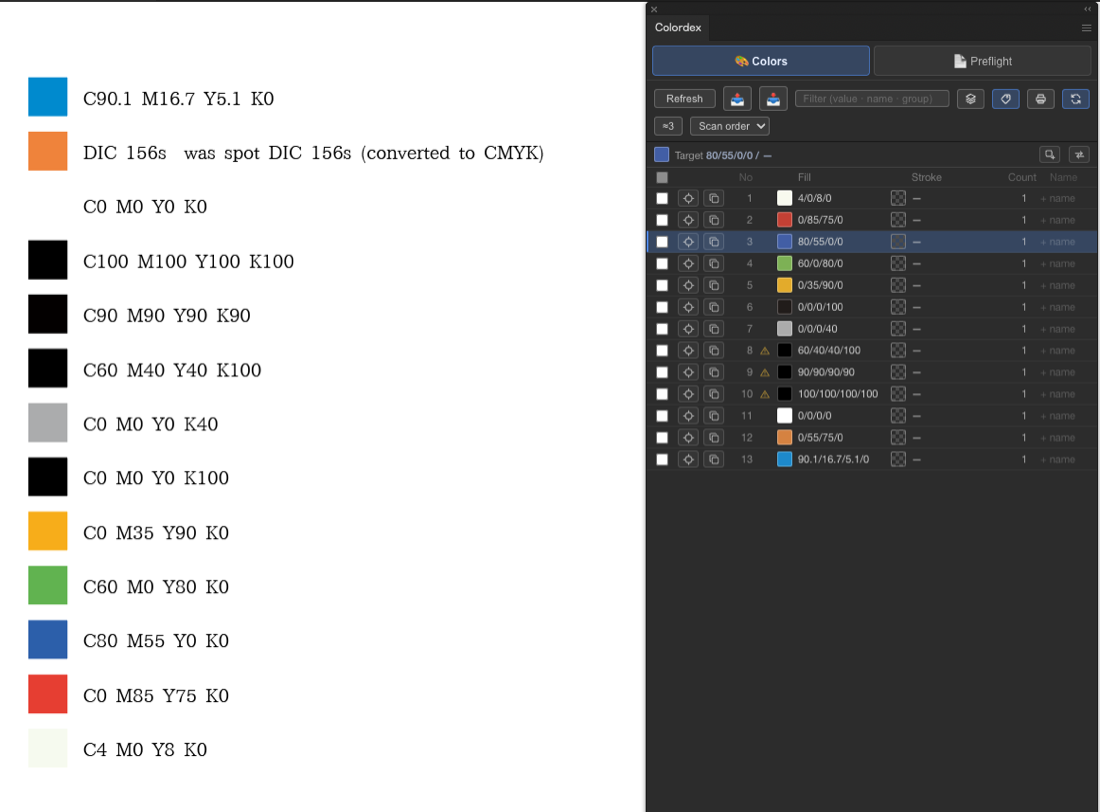
This is built for teams and high-volume social/brand work — hand a brand palette to a collaborator, or reuse it across a batch of posts, and everyone keeps the same colors with names and roles intact.
Privacy & data
Colordex runs entirely on your computer and collects or transmits no data. Fixes apply to copies and every action is undoable — your original is never touched. See the Privacy Policy and Terms / EULA.
Support
Questions, bug reports or feature requests: [email protected].